


After hours of frustration trying to use my Vanilla gift card on Amazon (and nearly giving up), I finally discovered the exact steps that actually work in 2024. I know I’m not alone in this struggle—many of us get these cards as gifts or rewards, only to hit a wall when trying to use them on Amazon.
I was surprised to find that vanilla gift cards offer greater ease and versatility in terms of payment methods. Everywhere Visa is accepted, these cards will be happy to serve at no charge, like purchases on the giant shopping platform Amazon.com. However, many people do not know how to use the Vanilla gift cards on Amazon; most of them experience problems when they need to split payments and purchase goods through the app.
Due to the flexibility, Vanilla gift cards have been more pleasing to consumers. As such, many shoppers prefer buying gift cards for self-use, appreciating the ease and security they provide for online transactions. Though popular, clear guidance is indispensable to ensure the seamless integration of these cards in Amazon shopping.
In this article, you’ll see clear steps to using a Vanilla gift card on Amazon.
Advertisement
Key takeaways
- Amazon does not support splitting payments between multiple credit or debit cards. Instead of making a partial payment using a Vanilla Gift Card, you can use your Vanilla card to buy an Amazon gift card and then add the gift card to your account balance.
- Since Amazon doesn’t allow more than one credit or debit card per purchase, you can convert each Vanilla Gift Card into an Amazon eGift card and add them to your account balance.
- The common problems include incorrect details of the card, insufficient balance, unregistered cards, expired cards, and security. Ensure all information is correct, check balances in advance, register your card with a billing address, check the card’s validity, and follow security to avoid declining your request.
How to use Vanilla gift card on Amazon
1. How to add your Vanilla gift card to Amazon
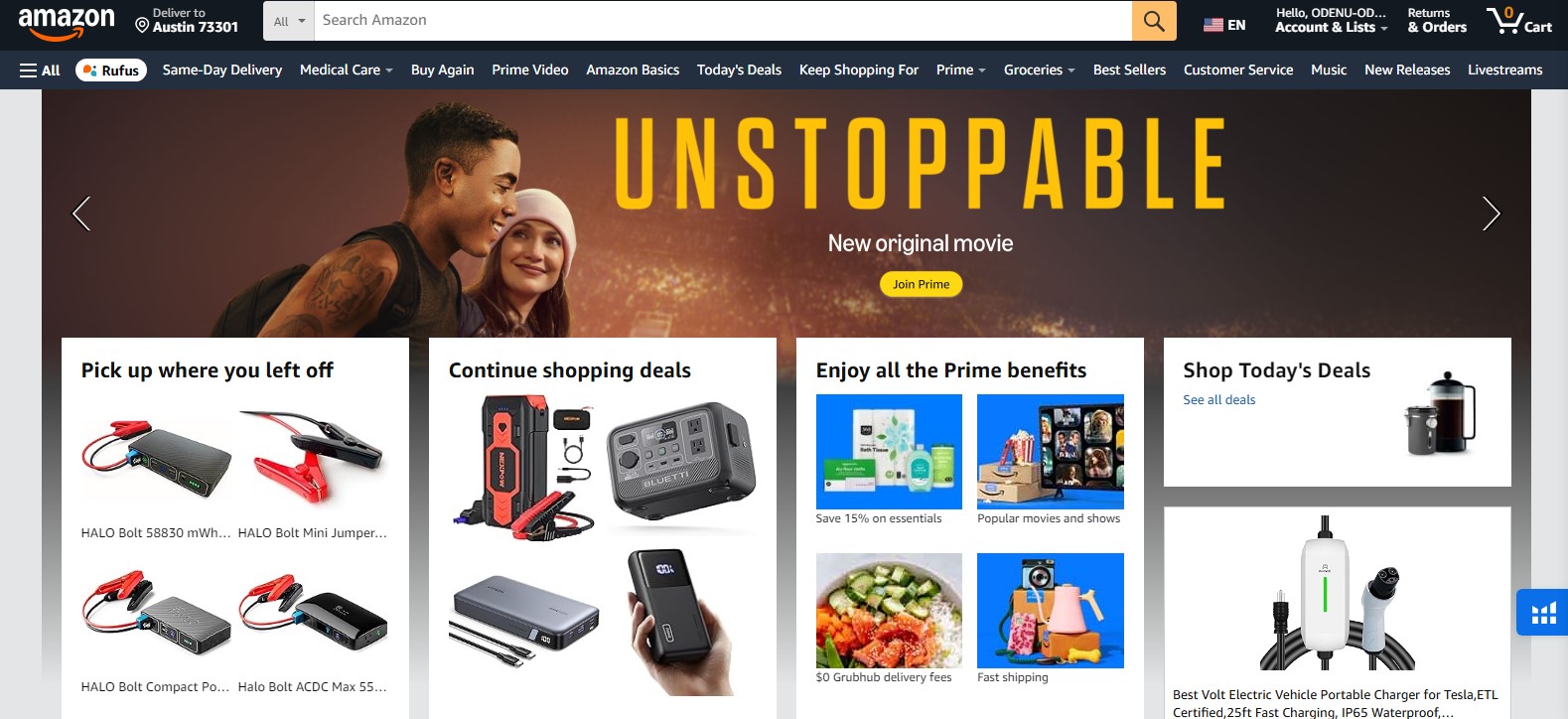
- Go to Amazon’s website and log into your account.
- Click on Account & Lists in the top right corner.
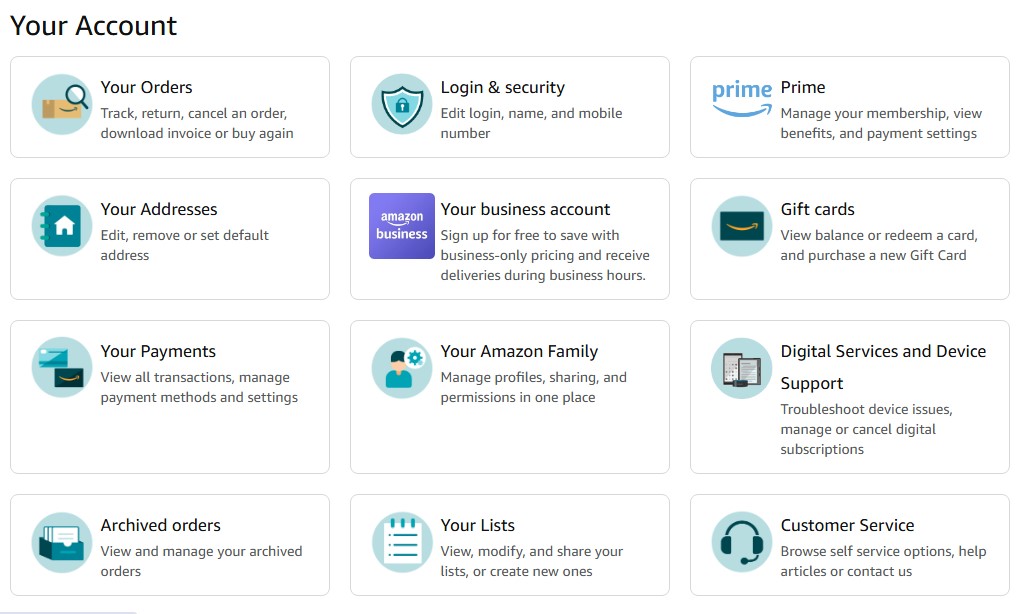
- From the options in the menu displayed, select Your Payments.
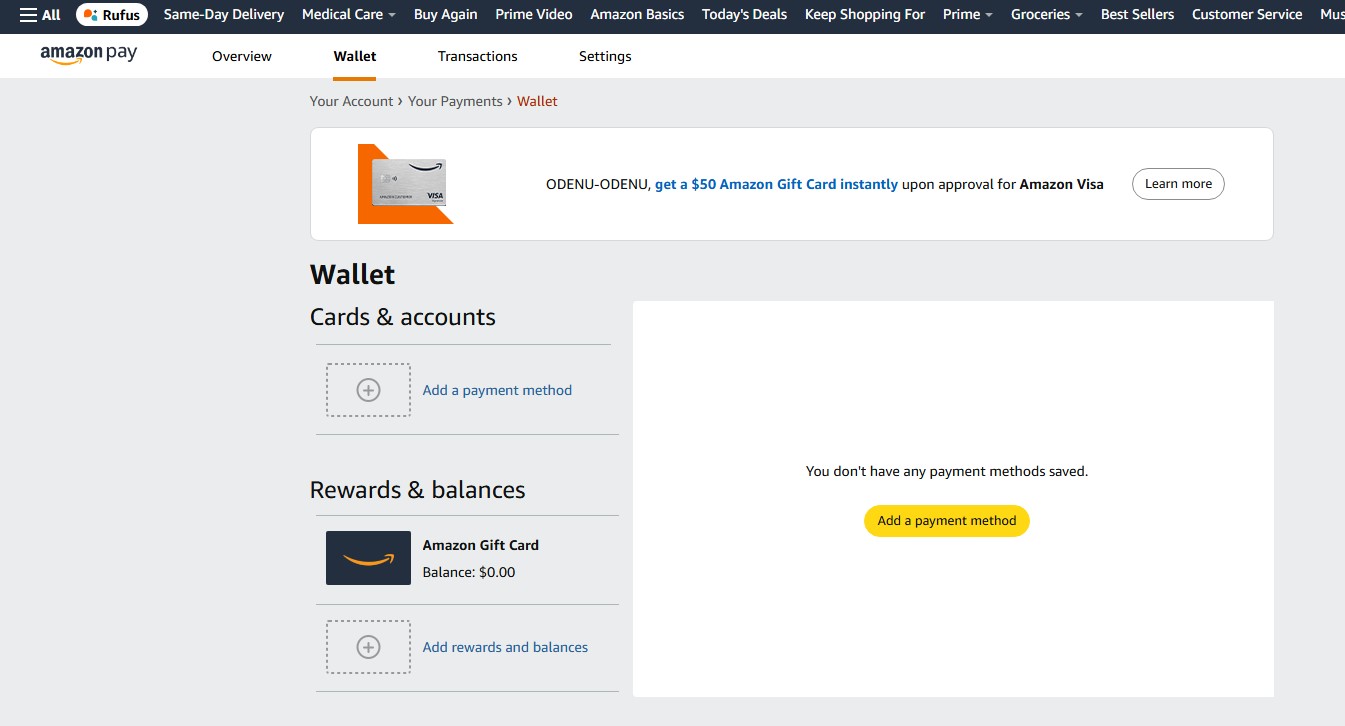
- Click Add a payment method.
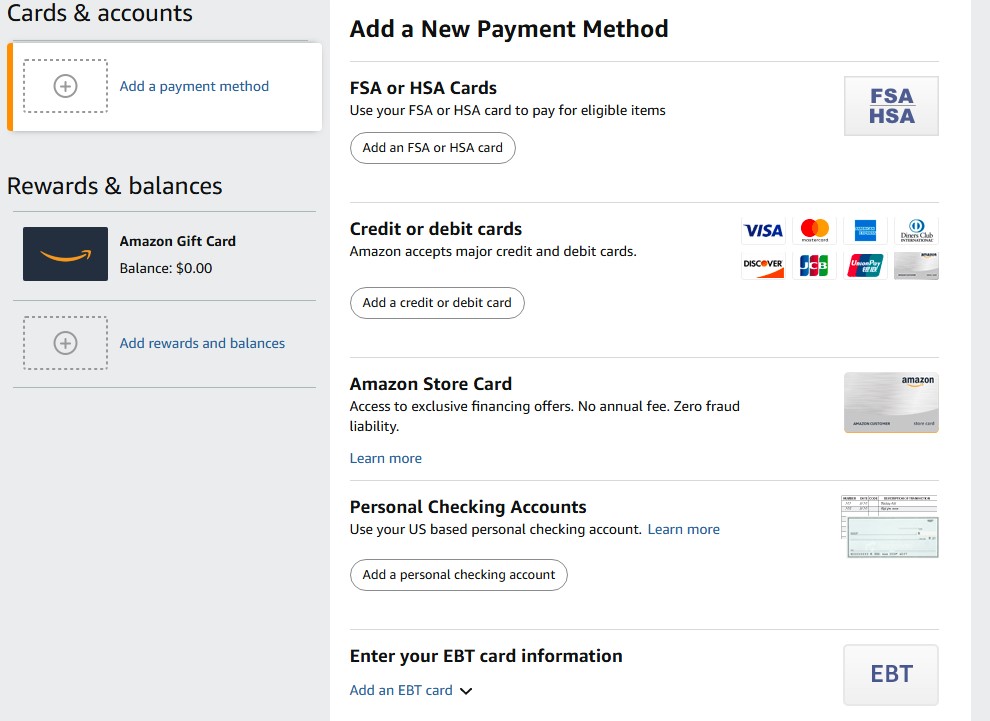
- Click Add a credit or debit card.
- Add your Vanilla gift card details: Card Number (16-digit number on the front), Name on Card (Your Name or ‘Gift Card Holder’ if not specified), Expiration Date (on the front of the card, formatted as MM/YY), and CVV (3-digit code on the back).
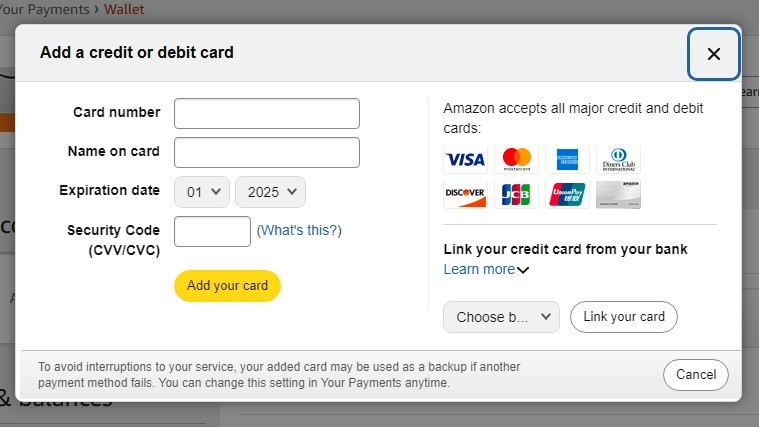
- Tap Add your card to save it.
2. How to use a Vanilla gift card on Amazon app
Adding and using a Vanilla gift card on the Amazon app is relatively easy. Here’s how you integrate in a few steps:
- Open the Amazon app on your mobile device. Ensure you are signed in to your account.
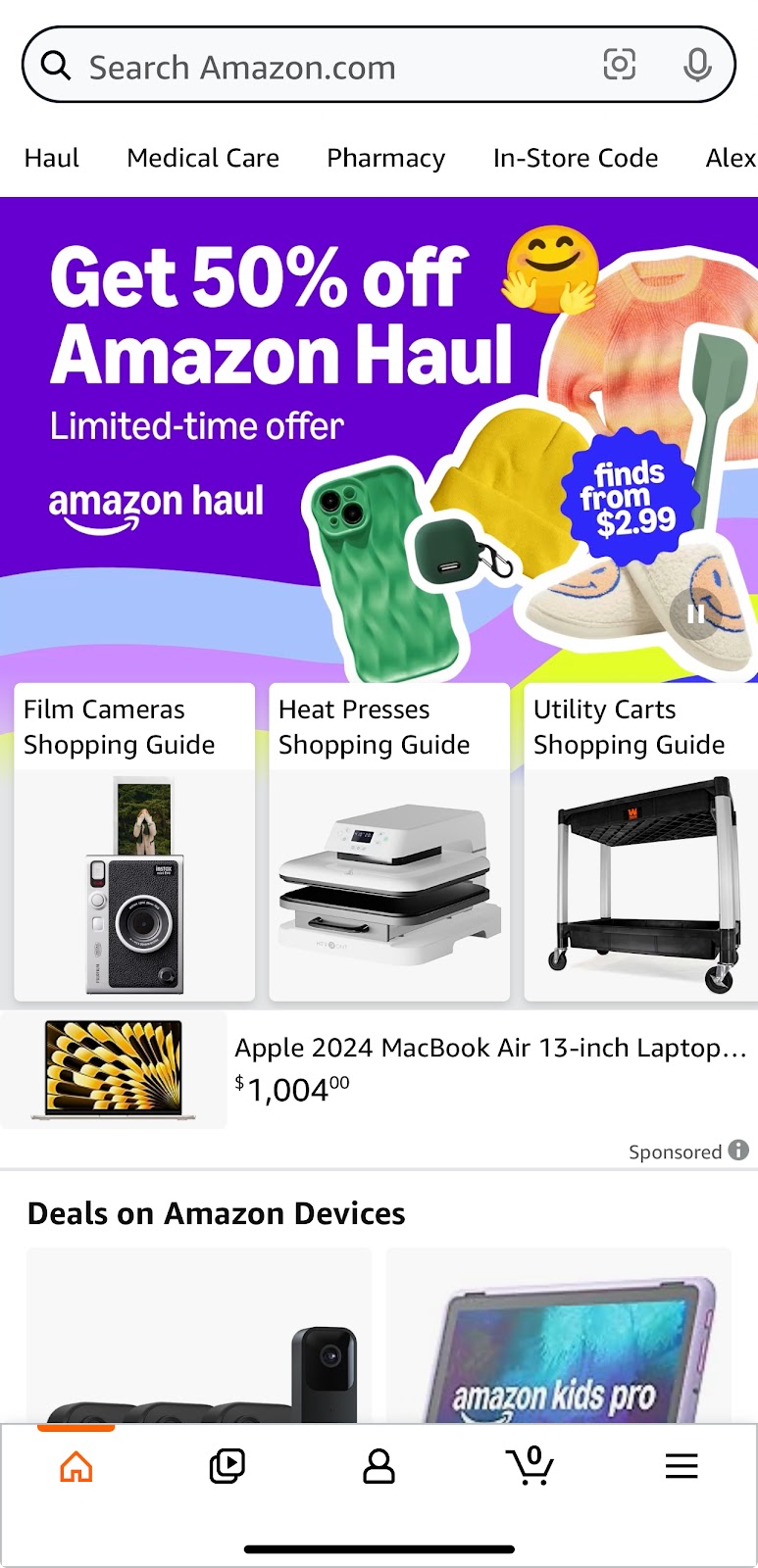
- Tap the profile icon at the bottom corner of the screen. From the menu options, tap Your Account.
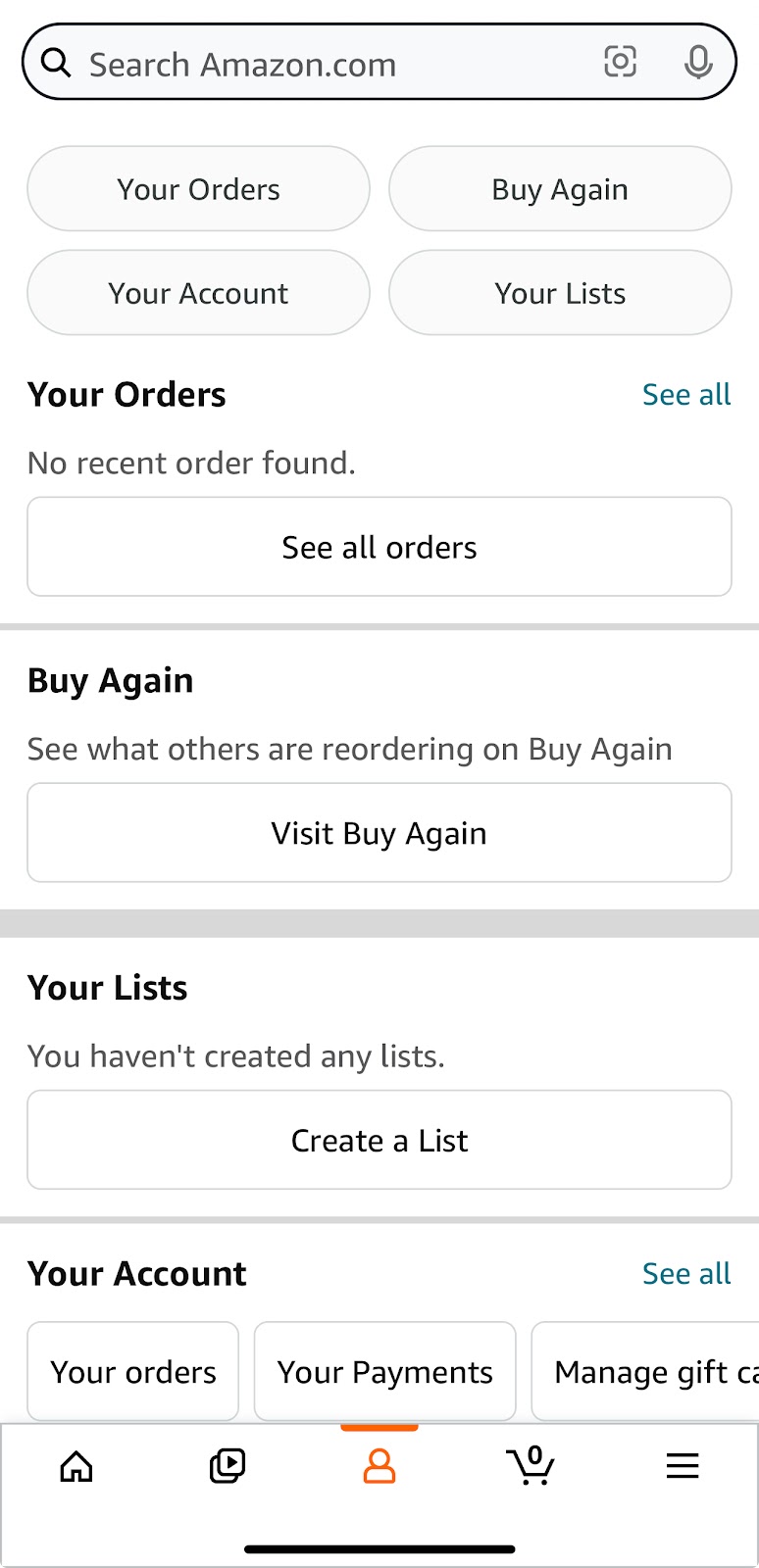
- Scroll down and tap Your Payments.
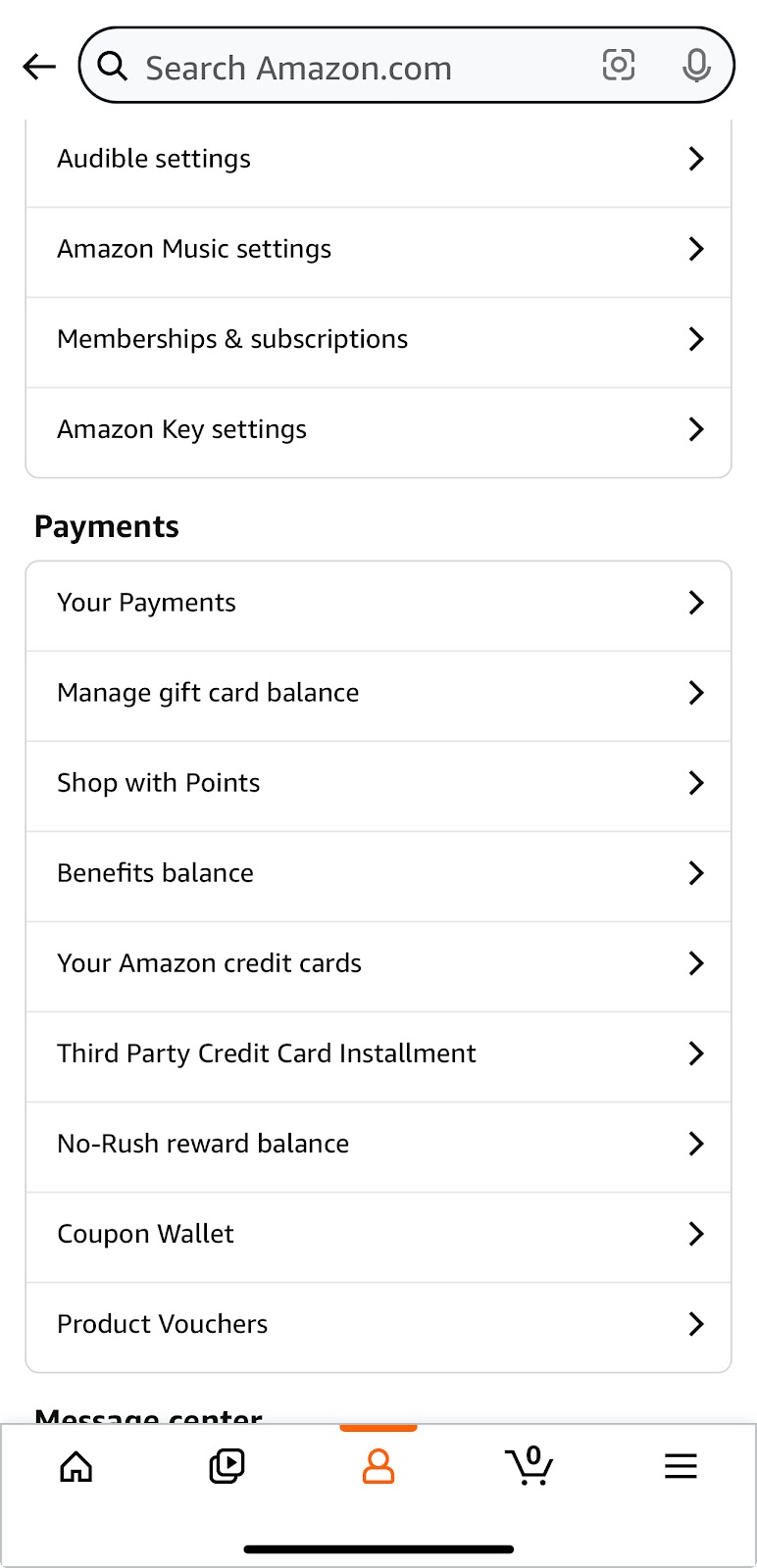
- Then, under the Wallet tab, tap Add a payment method.
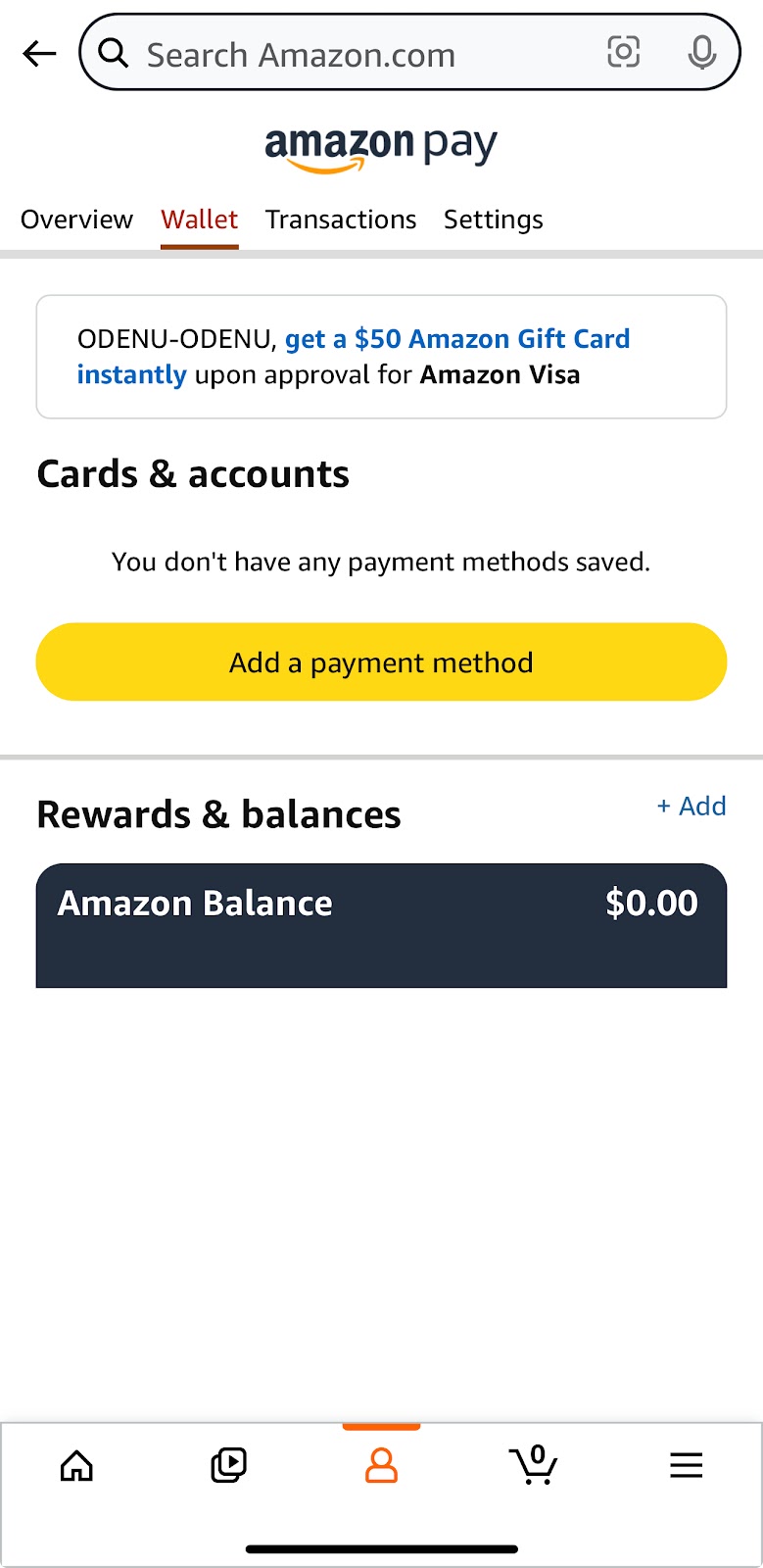
- Click Add a credit or debit card.
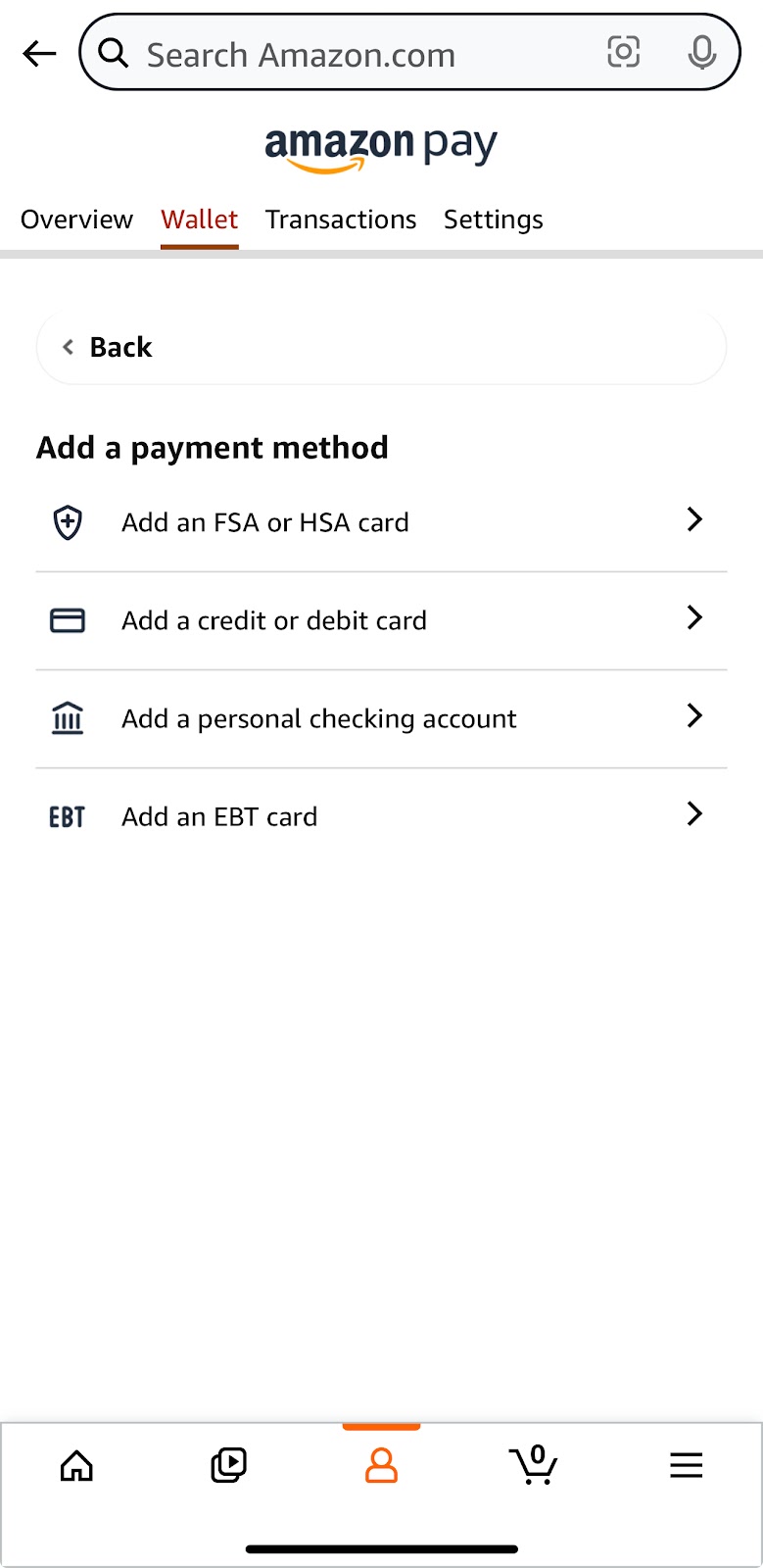
- Fill in the card details, then click Add and continue at the bottom to save the card.
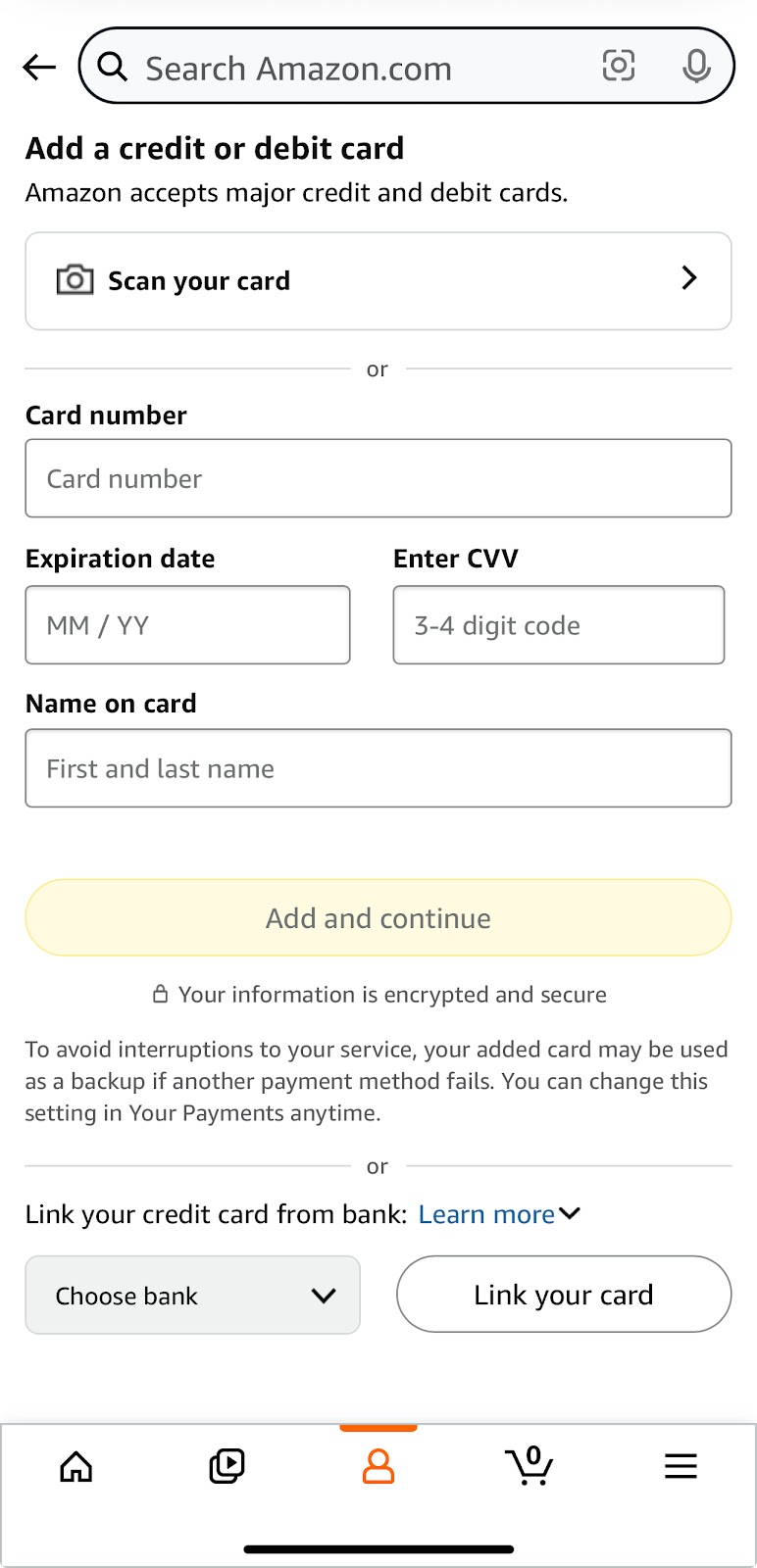
- You will see a page where you can add a billing address. Provide an address with which the card can be associated.
3. How to use a Vanilla gift card on Amazon for partial payment
Amazon’s payment system supports splitting the balance between an Amazon gift card balance and a credit or debit card, but not across multiple credit or debit cards.
You can use a Vanilla gift card for partial payment on Amazon by changing its balance into an Amazon gift card. Here is how:
- You can check the remaining balance of your Vanilla gift card by visiting their website or calling the number on the back of the card.
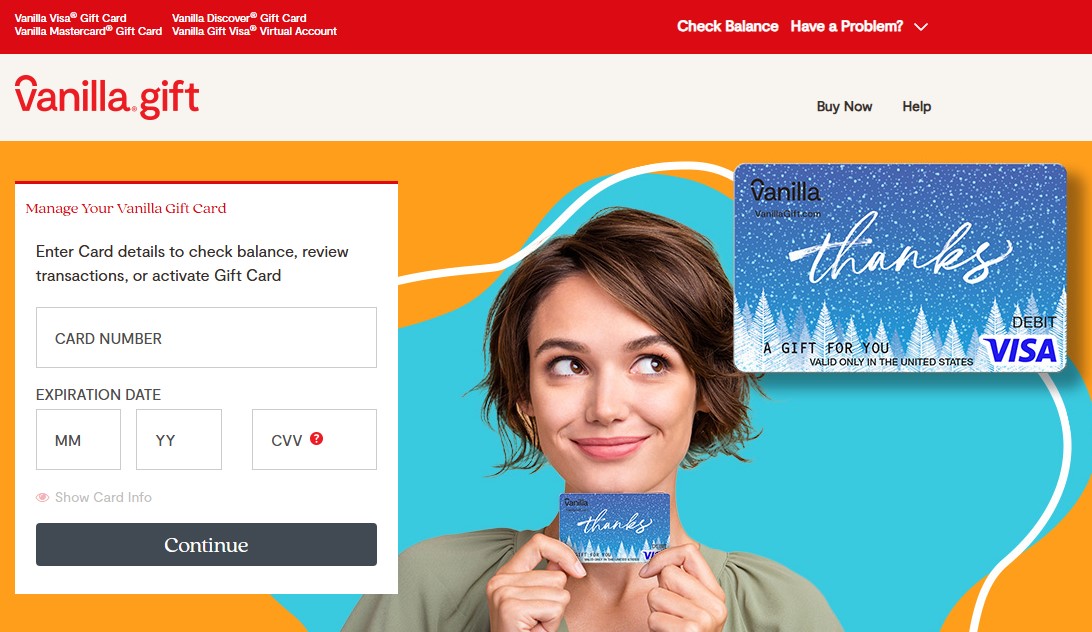
- Go to the Amazon Gift Cards page.
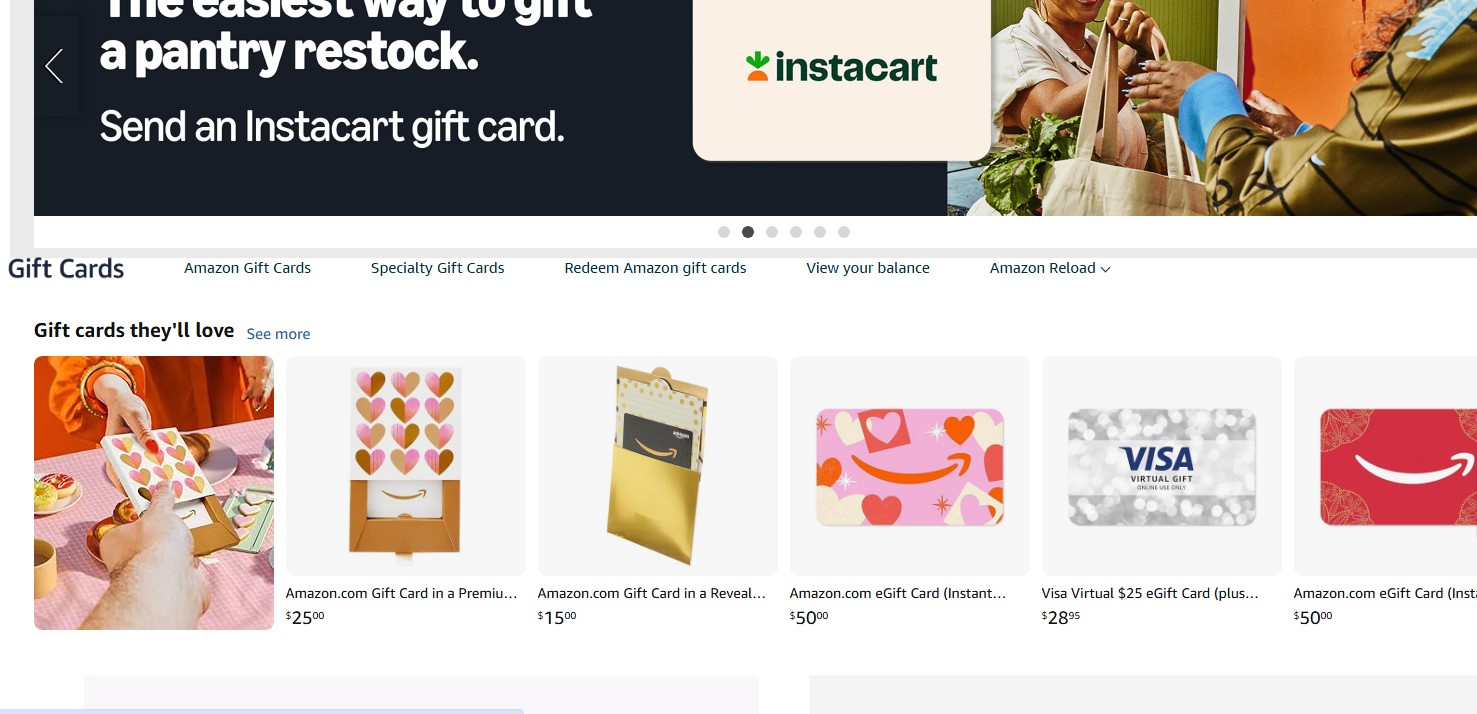
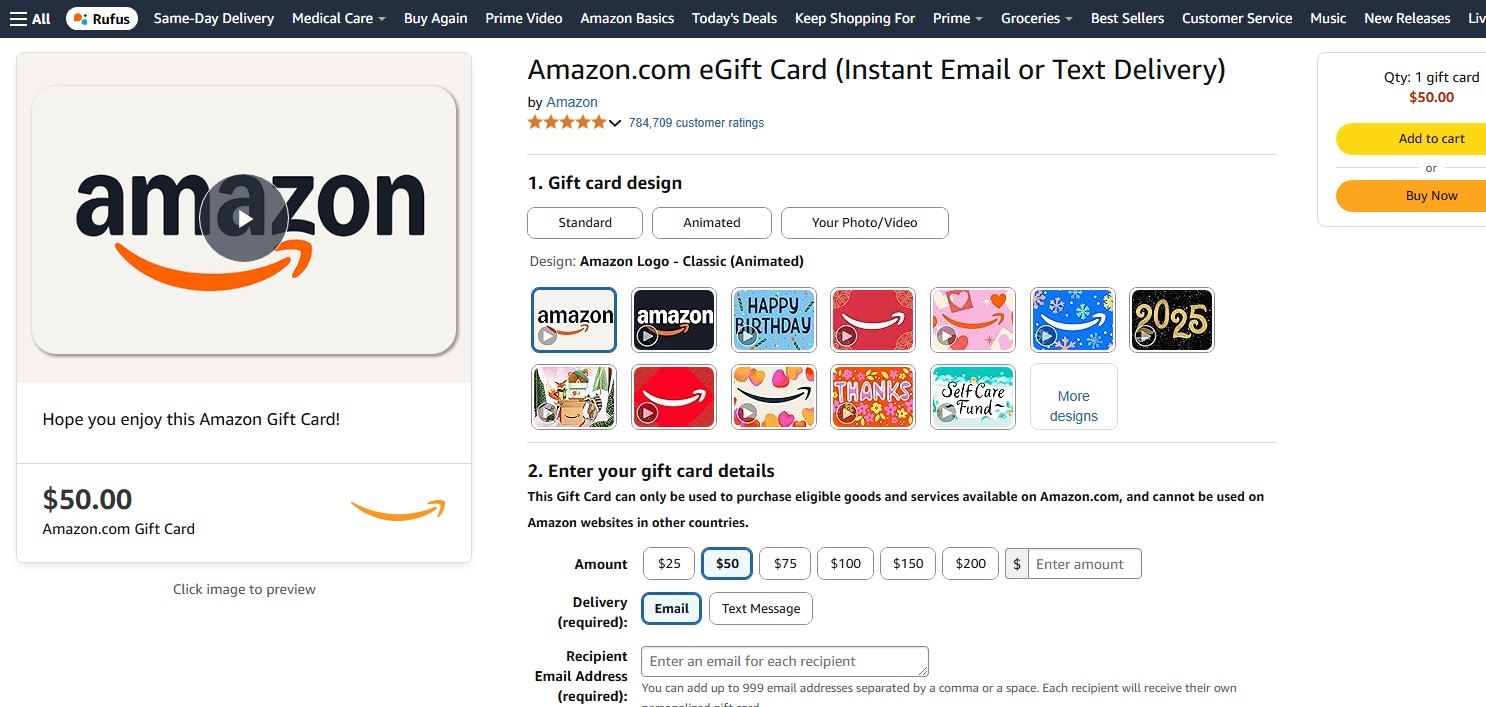
- Click eGift, then enter the amount equal to the balance of your Vanilla gift card and fill in your details. Click Buy Now.
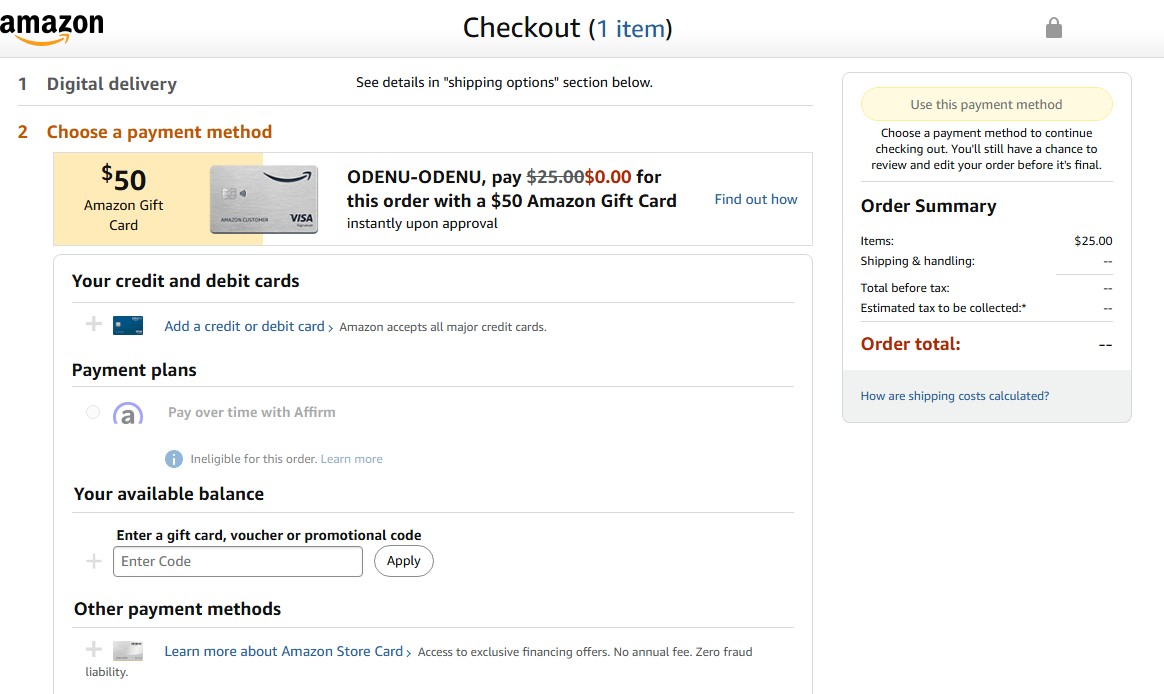
- Click Add a credit or debit card to use the Vanilla gift card as the preferred payment method, and enter the card details.
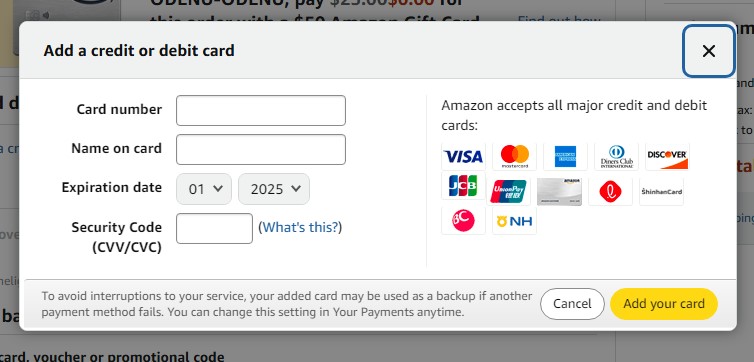
- Fill in your Vanilla gift card, then click Add your card.
- After filling in the details, click “Use this payment method” to deposit funds into your Amazon account, and then click “Check out.”
- When you receive the eGift card by email, click Redeem Now, and funds will be deposited into your Amazon account.
- Whenever you want to purchase an item, click on Checkout. The system will automatically use your Amazon gift card balance to make a purchase.
4. How to use multiple Vanilla gift cards on Amazon
Amazon does not directly support splitting payments between multiple credit or debit cards. You can, however, consolidate the balance of your Vanilla gift cards into your Amazon account by purchasing Amazon gift cards with each Vanilla card and then adding them to your account balance. Here’s how:
- You can check the remaining balance of your Vanilla gift card by visiting their website or calling the number on the back of the card.
- Go to the Amazon Gift Cards page.
- Click eGift, then enter the amount equal to the balance of your Vanilla gift card and fill in your details. Click Buy Now.
- Click Add a credit or debit card to use the Vanilla gift card as the preferred payment method, and enter the card details.
- Fill in your Vanilla gift card, then click Add your card.
- After filling in the details, click “Use this payment method” to deposit funds into your Amazon account, and then click “Check out.”
- Repeat the above steps as many times as you want to combine the number of Vanilla gift cards.
- When you receive the eGift cards by email, click Redeem Now, and funds will be deposited into your Amazon account.
- When you want to purchase something, click Check Out. The amount will be immediately deducted from your gift card’s current balance.
Troubleshooting issues when using a Vanilla gift card on Amazon
1. Incorrect card details
All card details, such as the 16-digit card number, expiration date, and CVV, should be correctly filled in. Even minor mistakes can result in a failed transaction.

Let the best of tech news come to you
Join 30,000 subscribers who receive Techpoint Digest, a fun week-daily 5-minute roundup of happenings in African and global tech, directly in your inbox, hours before everyone else.
2. Insufficient balance
Always check your card balance before making a purchase. You can do so by calling 1-833-322-6760 or visiting balance.VanillaGift.com. Ensure the balance covers the total purchase amount, as Amazon cannot split payments across multiple credit or debit cards.
3. Unregistered card
Some merchants require that the card have an associated billing address. You can register your Vanilla Gift Card through the issuer’s website or by calling customer service to attach your details to the card.
4. Expired card
Although your Vanilla Gift Card funds never expire, the ‘valid through’ date may be up to 14 years from today. If your expiration date has passed, your card is no longer valid. If this has occurred, please call Vanilla Visa Gift Card Customer Care at 1-833-322-6760 for further assistance.
5. Safety measures
If your card is declined despite sufficient funds, it may be due to security measures. Try using the card with a different online merchant or ensuring you include the correct card security code during the transaction.
Frequently asked questions
Can I use a Vanilla gift card for Amazon Prime subscriptions?
No. Vanilla gift cards, such as Prime subscriptions, cannot be utilized for recurring payments.
Why is my Vanilla gift card being declined on Amazon?
The most common reasons your Vanilla gift card will decline on Amazon are that it has not been activated, the purchase amount is more than the balance remaining on the card, or the card does not have a registered billing address.
Can I combine my Vanilla gift card balance with an Amazon gift card?
No. You cannot combine a Vanilla gift card balance directly with an Amazon gift card balance. However, you can add the Vanilla gift card as a payment method on Amazon and use it for purchases.
Can I use multiple Vanilla gift cards for one purchase on Amazon?
No. Amazon does not allow splitting a single purchase among multiple debit or credit cards, including Vanilla gift cards. Keep your purchase amount below the available balance of your Vanilla gift card.
Conclusion
Using a Vanilla Gift Card on Amazon effectively enhances your shopping experience with its flexibility and security. Adding it as a payment method and understanding Amazon’s policies on adding payment methods will seamlessly integrate your Vanilla Gift Card into your purchases.
Be aware of probable issues like incorrect card details, low balances, and unregistered or expired cards, and deal with them to avoid transaction glitches. Staying informed and proactive enables you to utilize your Vanilla Gift Card on Amazon efficiently.


